Version History
Superset can record the history of a chart or dashboard as you edit it, and let you look at, restore, or branch from any earlier version.
The panel lists each saved version with its author, timestamp, and a plain description of what changed — "Chart renamed to Q3 Revenue", "Added filter on 'Region'" — rather than a raw diff. You can search the history and filter it down to changes on the entity itself or on the things it depends on.
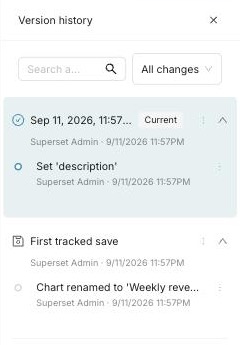
The version history panels described here apply to charts and dashboards. Datasets do not have a dedicated history panel, but their edits are captured by backend versioning and exposed through the dataset version APIs and related activity. Datasets also participate in soft deletion and can be recovered from Recently Archived.
Enabling and disabling it
| Setting | Type | Effect |
|---|---|---|
VERSION_HISTORY | Feature flag | Shows the version history UI |
ENABLE_VERSIONING_CAPTURE | Config value | Records versions as entities are saved |
Both default to on. To turn the feature off:
# superset_config.py
FEATURE_FLAGS = {"VERSION_HISTORY": False}
ENABLE_VERSIONING_CAPTURE = False
Restart Superset and its workers for the capture change to take effect. Existing history remains readable while capture is off, but Restore is unavailable (404).
Disable them together: capture off with the UI left on gives a panel that stops filling — an empty or stale history misrepresents the entity as unchanged. History only accrues while capture is on; edits made while it was off are not reconstructed.
How long history is kept
The version_history.prune_old_versions background task prunes expired
history. The default Celery beat configuration schedules it daily at 03:00
in the configured Celery timezone. It runs only when beat and workers are
running with the required schedule and task registration; see the
operator checklist.
The SUPERSET_VERSION_HISTORY_RETENTION_DAYS configuration value defaults to
30 days. It is initialized from the environment variable of the same name
and can be overridden in superset_config.py. Restart the relevant processes
after changing environment or configuration values.
At startup, a non-integer environment value or one above 36,500 logs a warning and falls back to 30 days. Use zero, not an arbitrarily large number, to disable pruning.
Pruning preserves live version rows and their anchoring transactions, regardless of age. It does not preserve every historical row that shares one of those transactions: closed rows can be removed when their closing transaction expires. Retention can therefore remove history used by previews and restores; version history is not a substitute for backups.
Set the value to zero (or any non-positive value) to disable history pruning.
There is no dry-run switch for this task. Neither VERSION_HISTORY nor
ENABLE_VERSIONING_CAPTURE disables pruning of existing history. To preserve
history while the feature is off, set the retention value to zero or remove
the pruning task's beat schedule entry. This window governs version
history only; permanent deletion of an entity also removes its history,
regardless of this setting. The separate retention window for archived objects
is described on Recently Archived.
Viewing history
On a chart, open … (actions) → View version history in Explore. A dashboard uses the same entry in its own … (actions) menu.
The entry appears for users who may edit the entity — the same rule the server applies to overwriting it: administrators, plus anyone whose subjects are among the entity's editors. Users who cannot edit do not see the panel.
This rule is enforced by the server, not just reflected in the UI: the version and activity endpoints refuse users without edit rights on the specific entity, so a read-only user cannot retrieve an entity's history through the API either. Embedded guest tokens are refused outright, regardless of any editorship their role might carry.
One entry can appear that nobody typed: the first save through the chart editor of a chart created by an older Superset version, an import, or the API may record a one-time settings-migration entry alongside the user's change, as legacy settings are rewritten to their modern form. On a chart opened normally in Explore almost none of that rewrite is recorded — at most, a removed legacy setting may appear as cleared; when Explore is reached from a dashboard, a shared link, or a URL that picks the chart type, a first save can carry more of these automatic rewrites. It happens at most once per chart per upgrade, and later saves record only what the user changed.
Previewing a version
Selecting a version loads it into the page so you can see it before deciding anything.
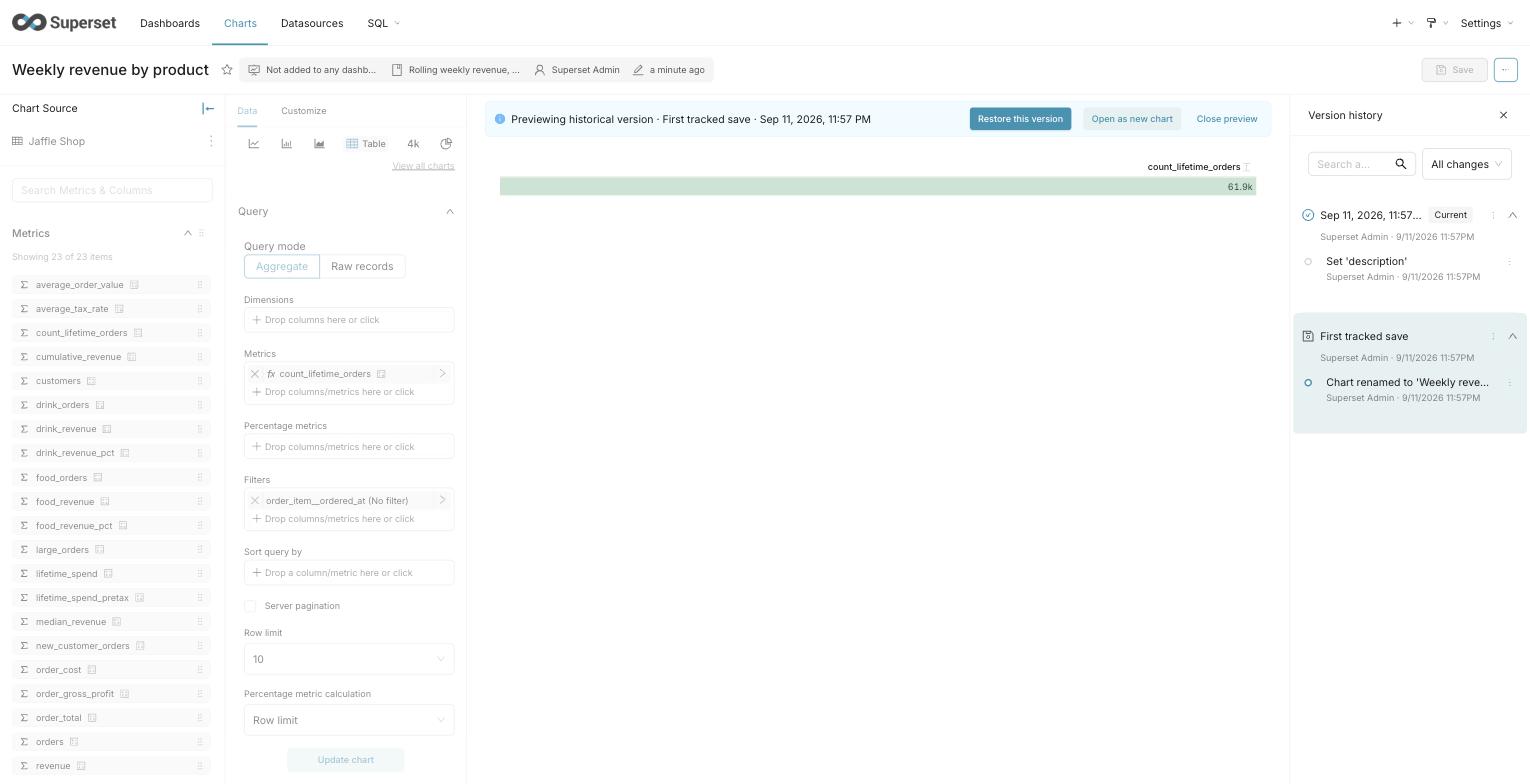
This screenshot illustrates the preview actions in an earlier build. It predates single-selection highlighting: the UI highlights only the previewed history group, not both groups as shown. The live group retains its Current label.
While a preview is active:
- A banner across the top marks the page as historical and names the version.
- The dashboard or chart itself is inert — filters, controls, and chart interactions are disabled, so nothing you click can be mistaken for editing the live entity. You can still scroll, and still move between tabs.
- Saving is unavailable. Preview never writes.
Close the preview to return to the live version, along with whatever filter selections you had before you opened it.
A dashboard preview reconstructs the layout as it was, including charts that have since been removed from the dashboard. A chart that has been deleted outright cannot be reconstructed; its slot shows a placeholder instead.
Preview is a close approximation of the version, not a pixel-faithful replay. The dashboard's own saved properties — title, CSS, metadata, description, slug, certification, draft or published state, and theme — are shown as they were. Charts, though, render with their current definitions rather than the definitions they had at that version, and a dashboard's chart membership is reconstructed from the saved layout, so charts that belonged to the dashboard without appearing in the layout are not represented. Restore applies the full captured state, so a restored dashboard can differ from its preview in these respects.
Restoring a version
Restore rewrites the entity back to the selected version. Two things are worth knowing:
- Restore appends a version. Restoring does not itself delete the states you moved away from. Returning to one of those states depends on its history still being available; retention and permanent deletion can remove it.
- A dashboard restore may be partial. If the version referenced charts that have since been deleted, the layout is restored without them and Superset tells you how many were not reattached.
Restoring is offered to the same users who may edit the entity, and is withheld from externally managed entities, whose source of truth lives outside Superset and would overwrite the restore on the next sync.
Opening a version as something new
Open as new creates a brand-new chart or dashboard from the selected version and leaves the original untouched. This is the safer option when you want an old state back but are not certain you want to give up the current one.
How much of the version comes across differs by entity, because the two copy paths do. A new chart is built from the version itself: its name, visualization type, dataset, controls, query context, description, and cache timeout. A new dashboard is a copy of the live dashboard with the version's title, CSS, metadata, and layout applied over it — the copy endpoint accepts only those fields, so properties such as description, slug, certification, and theme come from the dashboard as it stands today, not from the version.
What gets recorded
Versions capture the entity's own saved state — a chart's name, visualization type, and controls; a dashboard's title, layout, filters, and properties.
The timeline also shows related activity: changes to things the entity depends on, such as the dataset behind a chart. These are shown for context and cannot be restored from the entity's own history — restore acts on the entity you are looking at.
Changes made outside a save, such as ownership or permission edits, are not part of version history.